01 / Task
Start the system
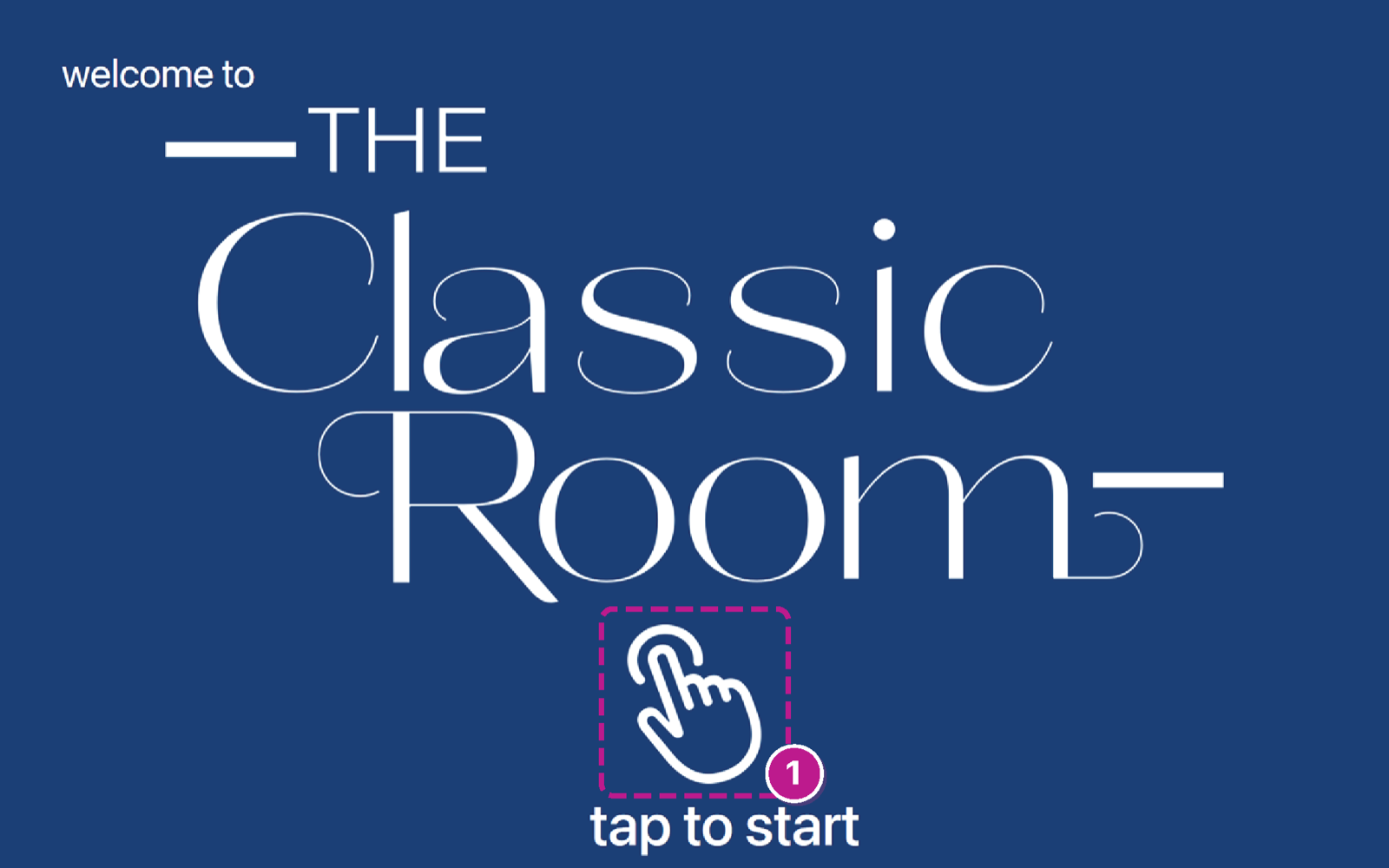
- Tap the standby screen where it says Tap to Start.
- Wait for the room-selection screen to appear.
1
Tap to startOpens the room setup screen.
Everyday operation
Start here when you need the room to work. Each section pairs a real touch-panel screen with the shortest useful set of steps.
Download the complete 22-page PDF guide ↓01 / Task
Tap to startOpens the room setup screen.
02 / Task
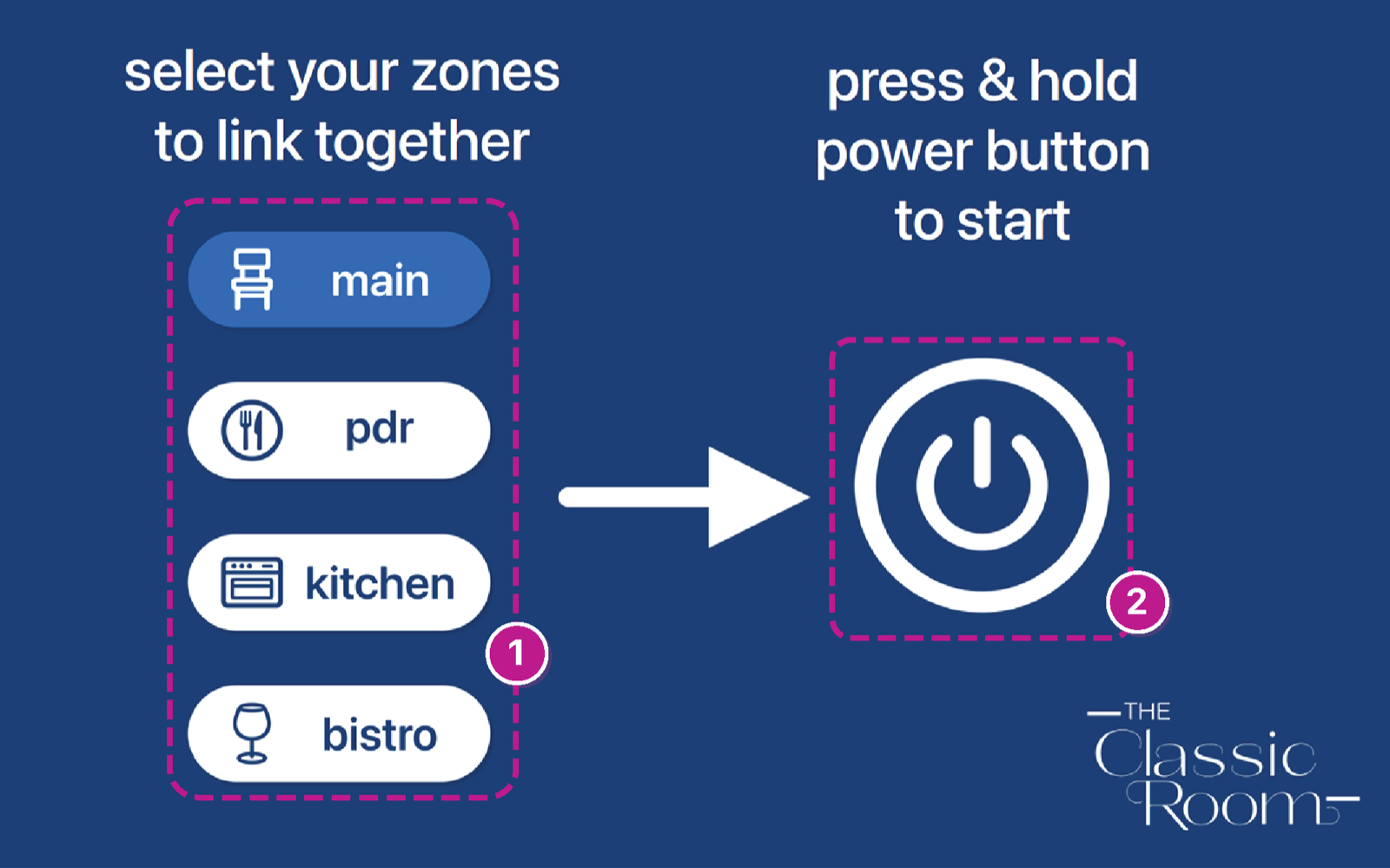
Room buttonsSelect the Private Dining Room, Main room, Kitchen, or Bistro.
Press-and-hold powerStarts the selected rooms.
03 / Task
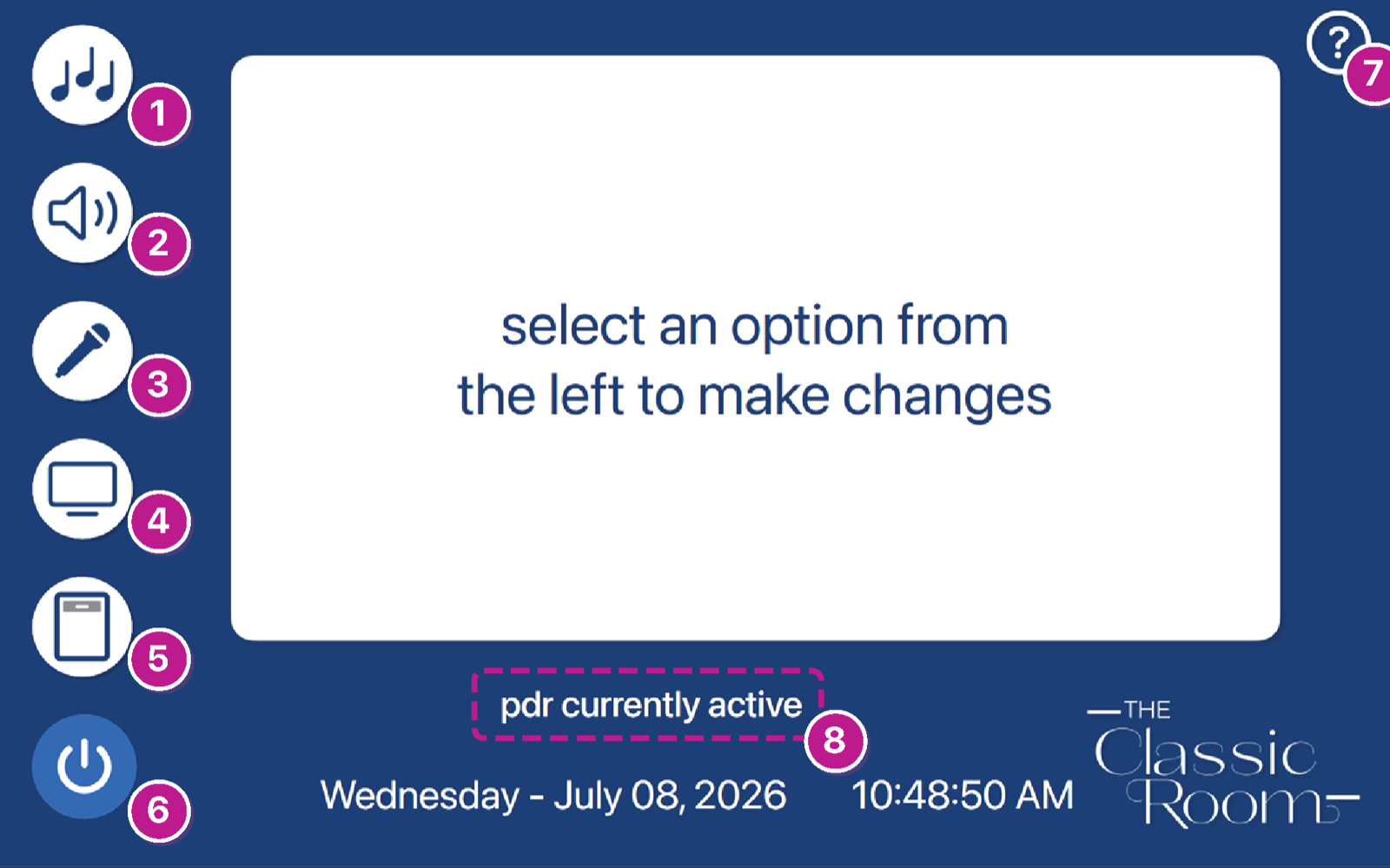
Background MusicOpens music playback controls.
Volume LevelsOpens speaker and source volume controls.
MicrophonesOpens wireless microphone controls.
DisplaysOpens display power and source routing.
Shade ControlOpens the three shade controls.
Power DownStarts the shutdown screen.
HelpOpens guidance and Service Desk information.
Active room textShows which rooms this panel controls.
04 / Task
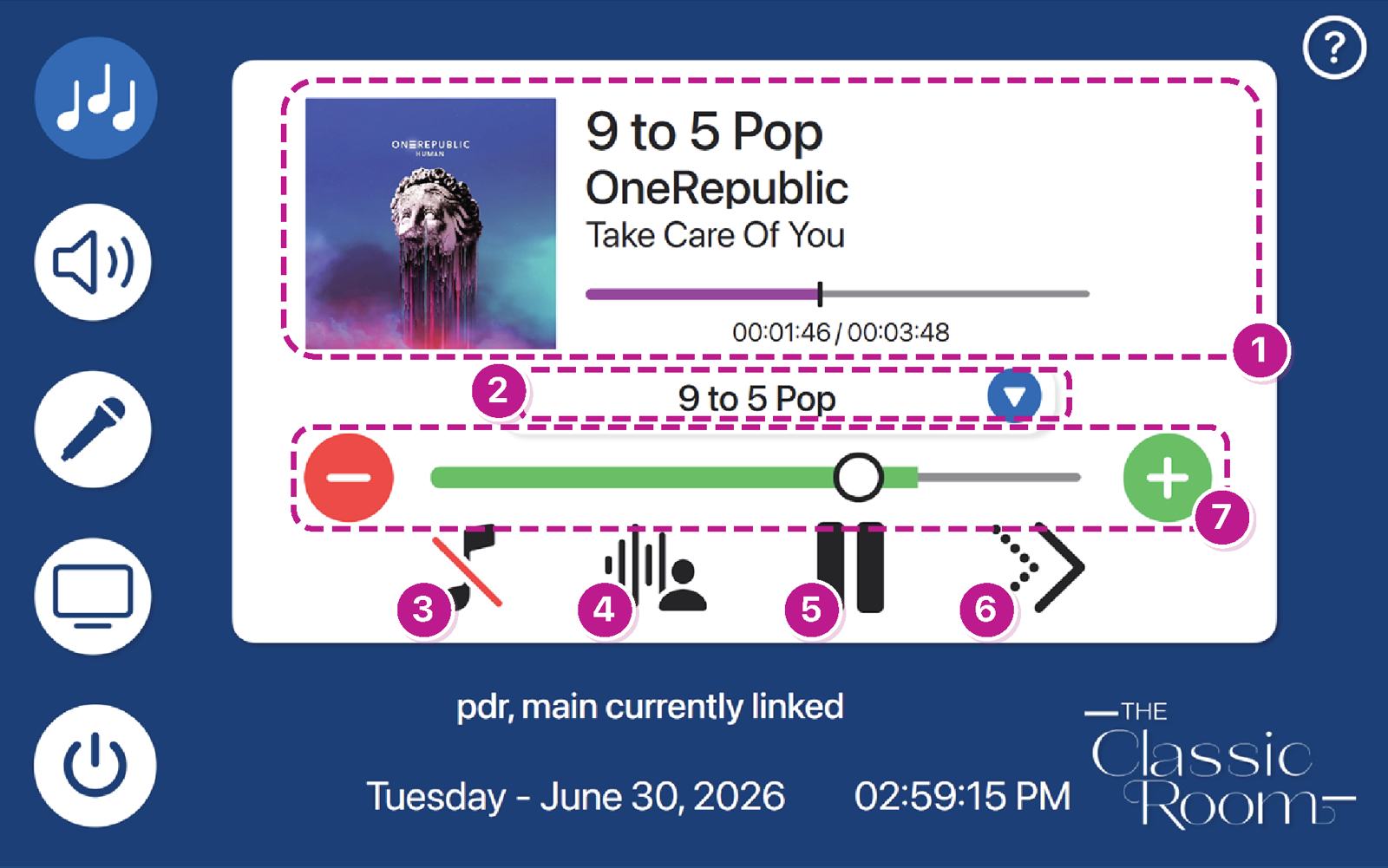
Track informationShows album art, playlist, song, artist, and progress.
Playlist selectorChooses the music playlist.
MuteSilences background music.
Microphone priorityAutomatically lowers music while microphones are used.
Play/PauseStarts or pauses playback.
SkipMoves to the next track.
Music levelRaises or lowers background music.
05 / Task
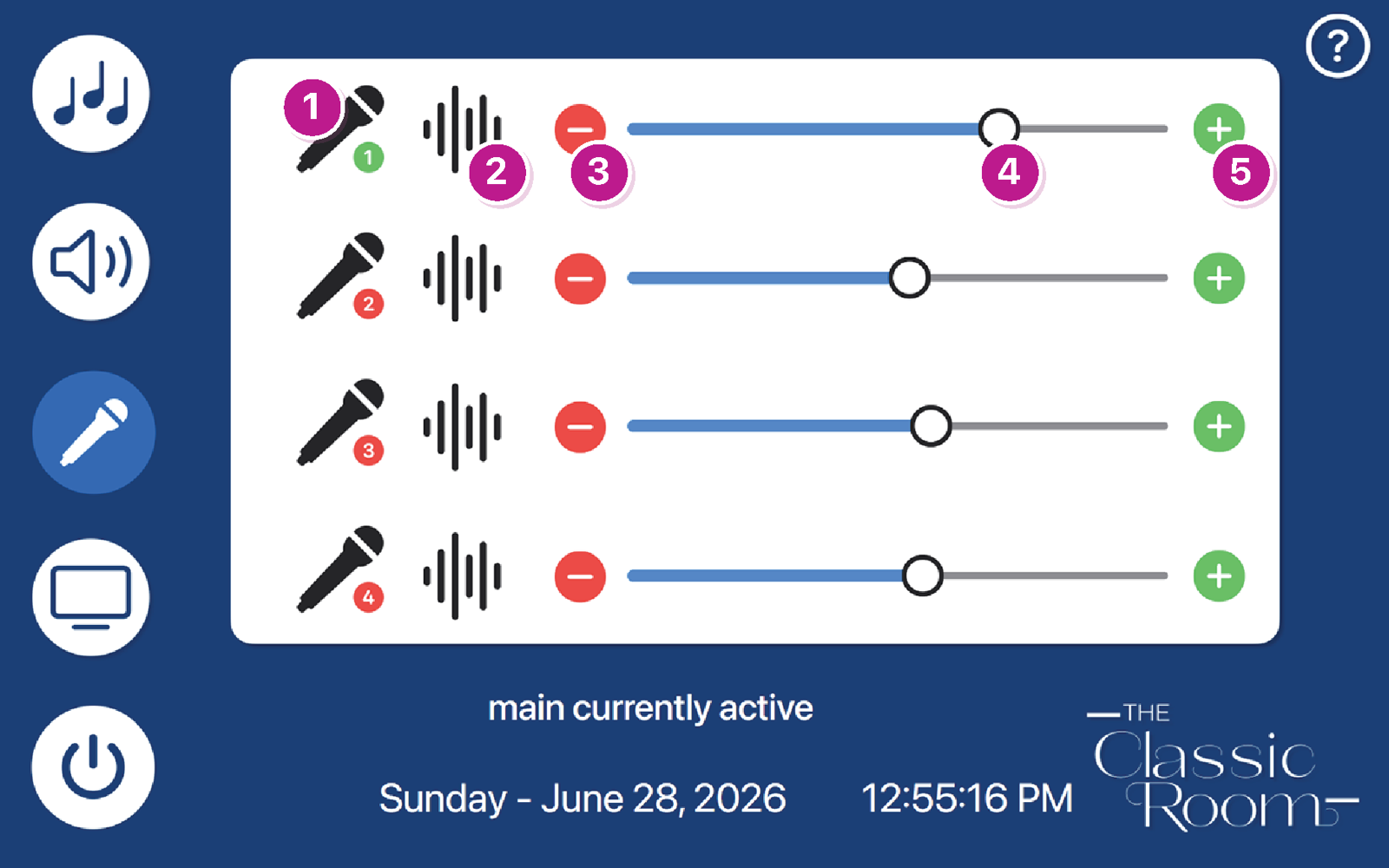
Microphone buttonMakes that microphone active or inactive for the room.
CompressorReduces loud spikes in the microphone.
Level downLowers the microphone level.
Fader sliderDrag to set the microphone level.
Level upRaises the microphone level.
06 / Task
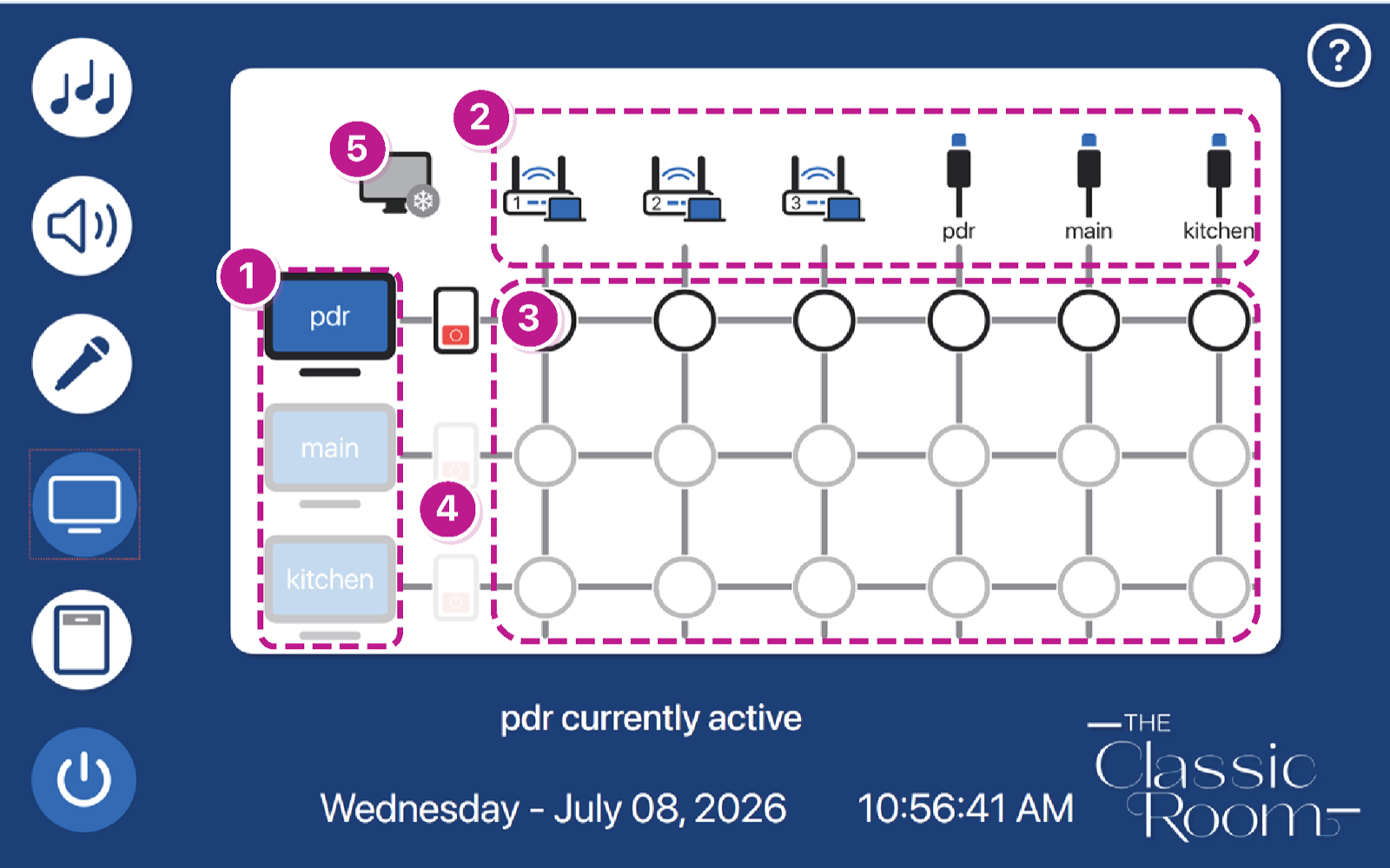
Display rowsEach row is a display location.
Source columnsEach column is an available video source.
Routing gridRoutes the selected source to a display.
Display powerTurns that display on or off.
FreezePauses or resumes the current display image.
07 / Task
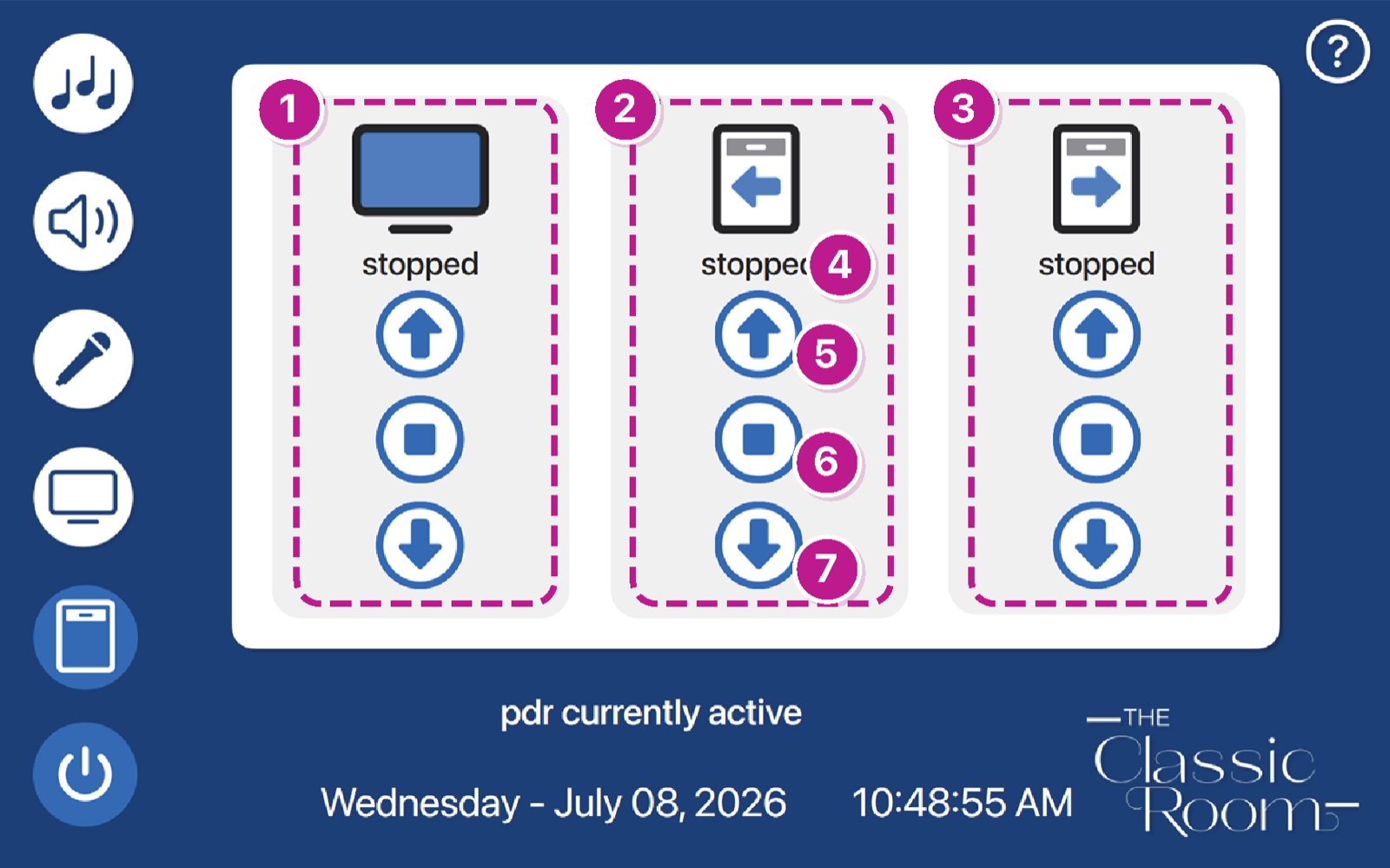
Display ShadeControls the shade at the Main display.
Window Shade LeftControls the left window shade and may receive solar-automation commands.
Window Shade RightControls the right window shade and may receive solar-automation commands.
Status labelsShows the last command sent, not a measured physical position.
OpenSends the up/open command.
StopStops the shade at its current position.
CloseSends the down/closed command.
Guidance in context
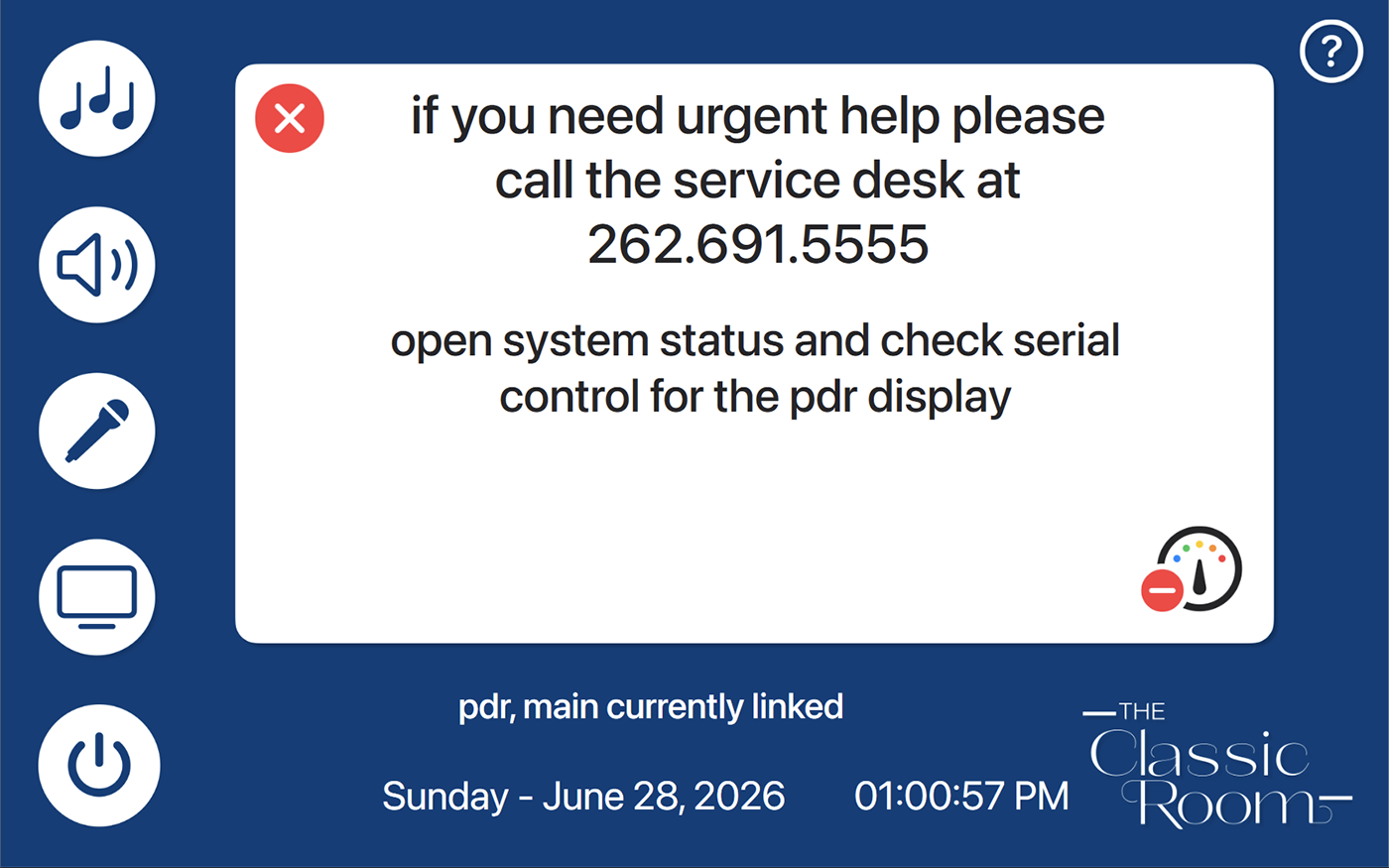
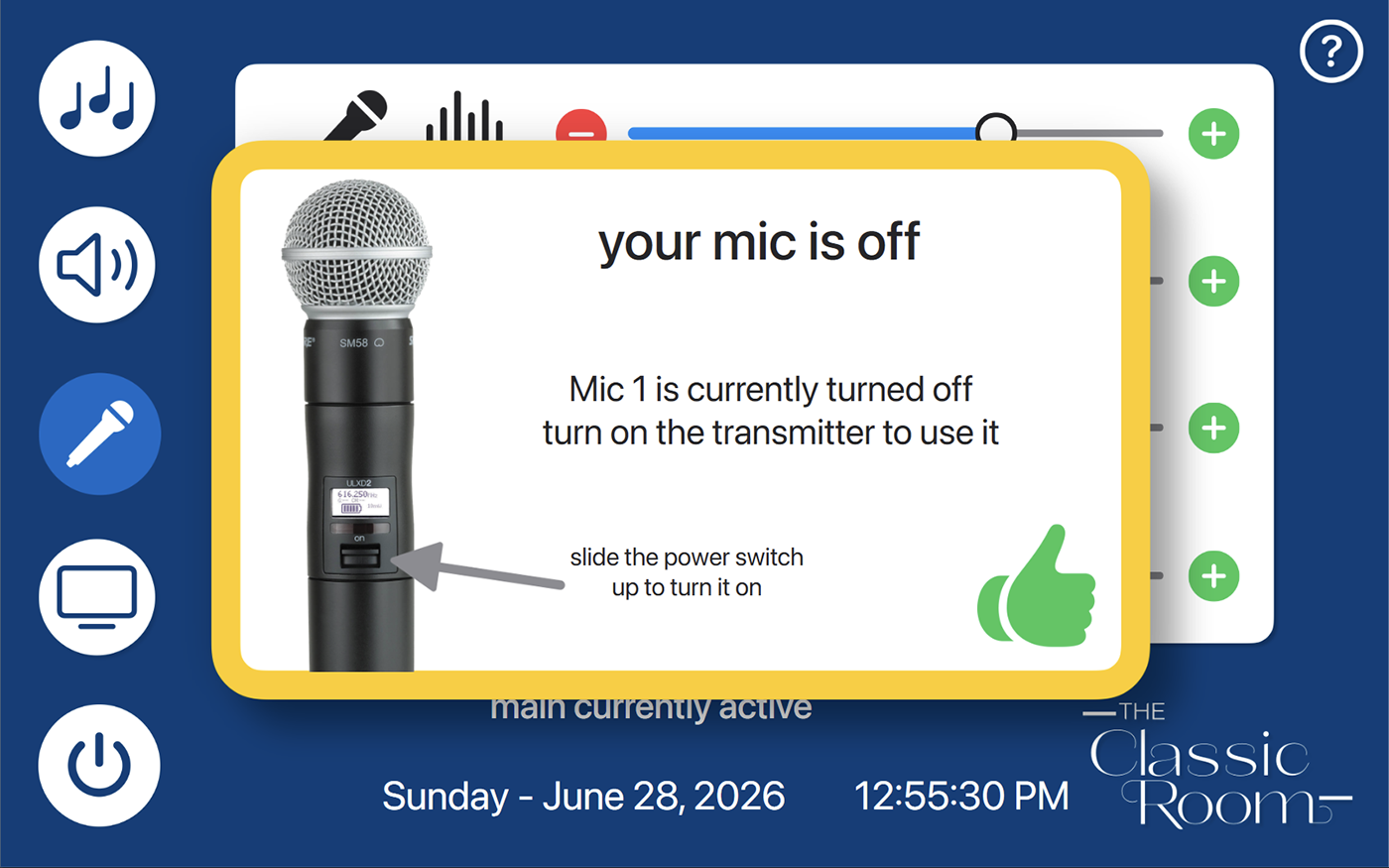
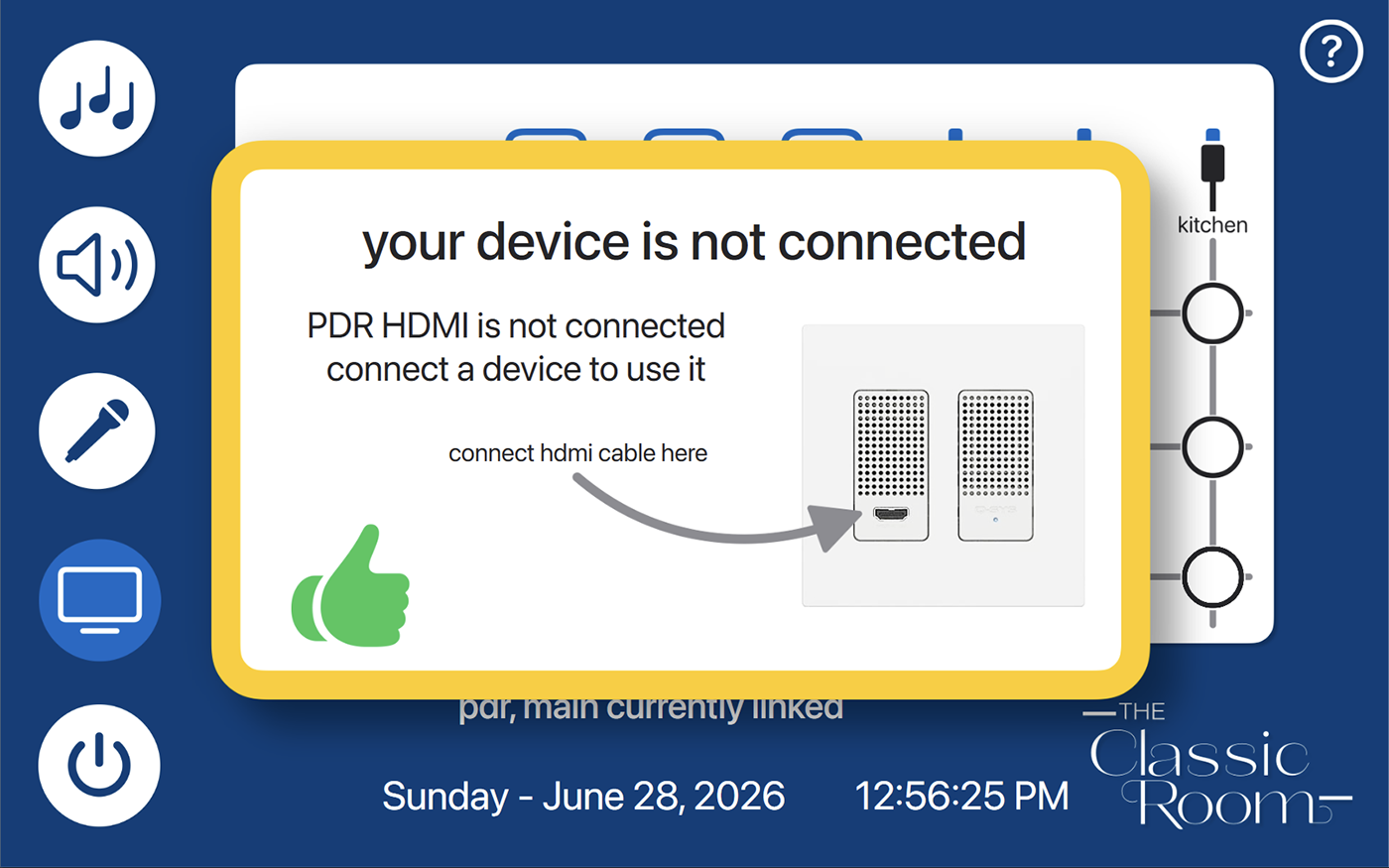
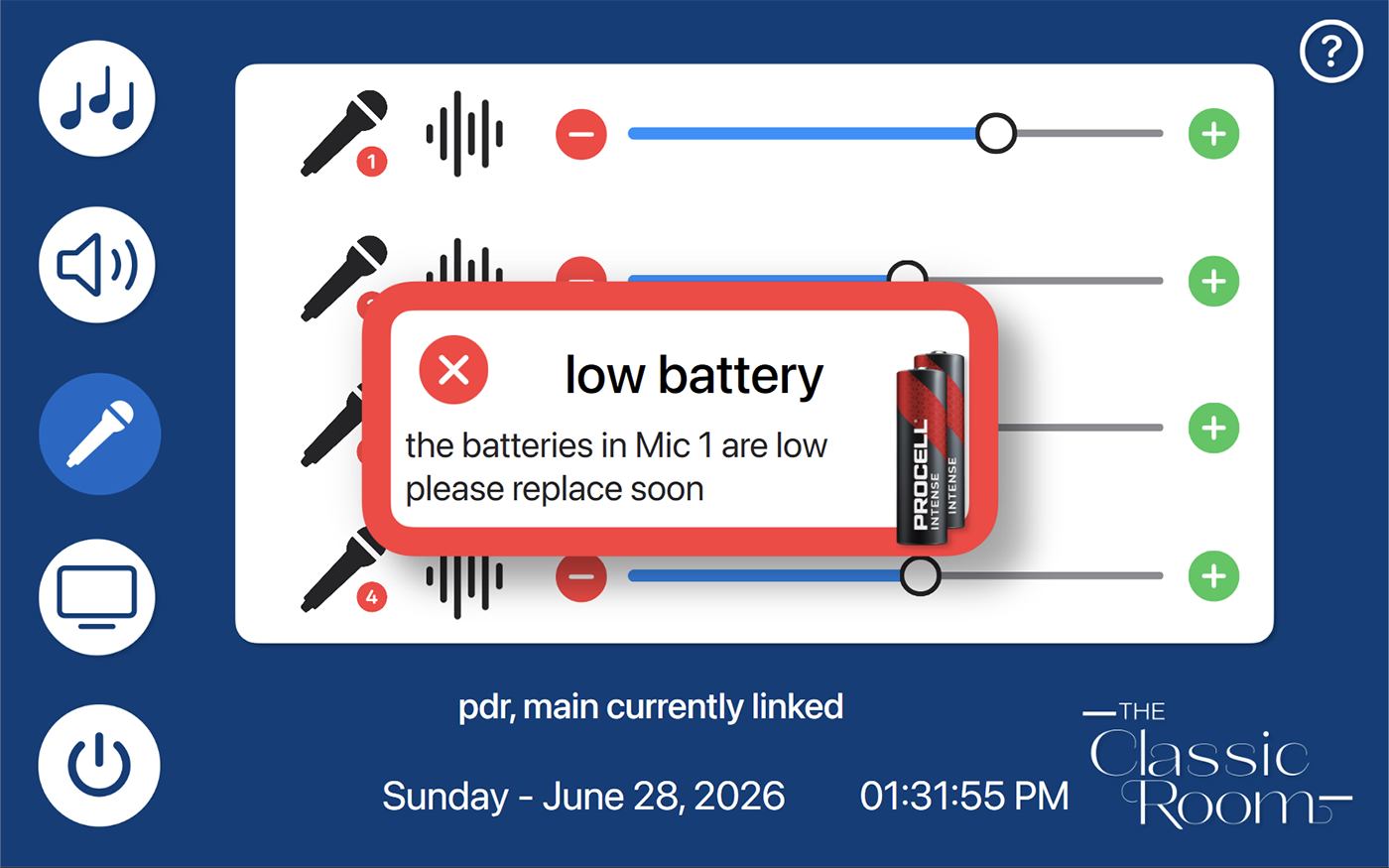
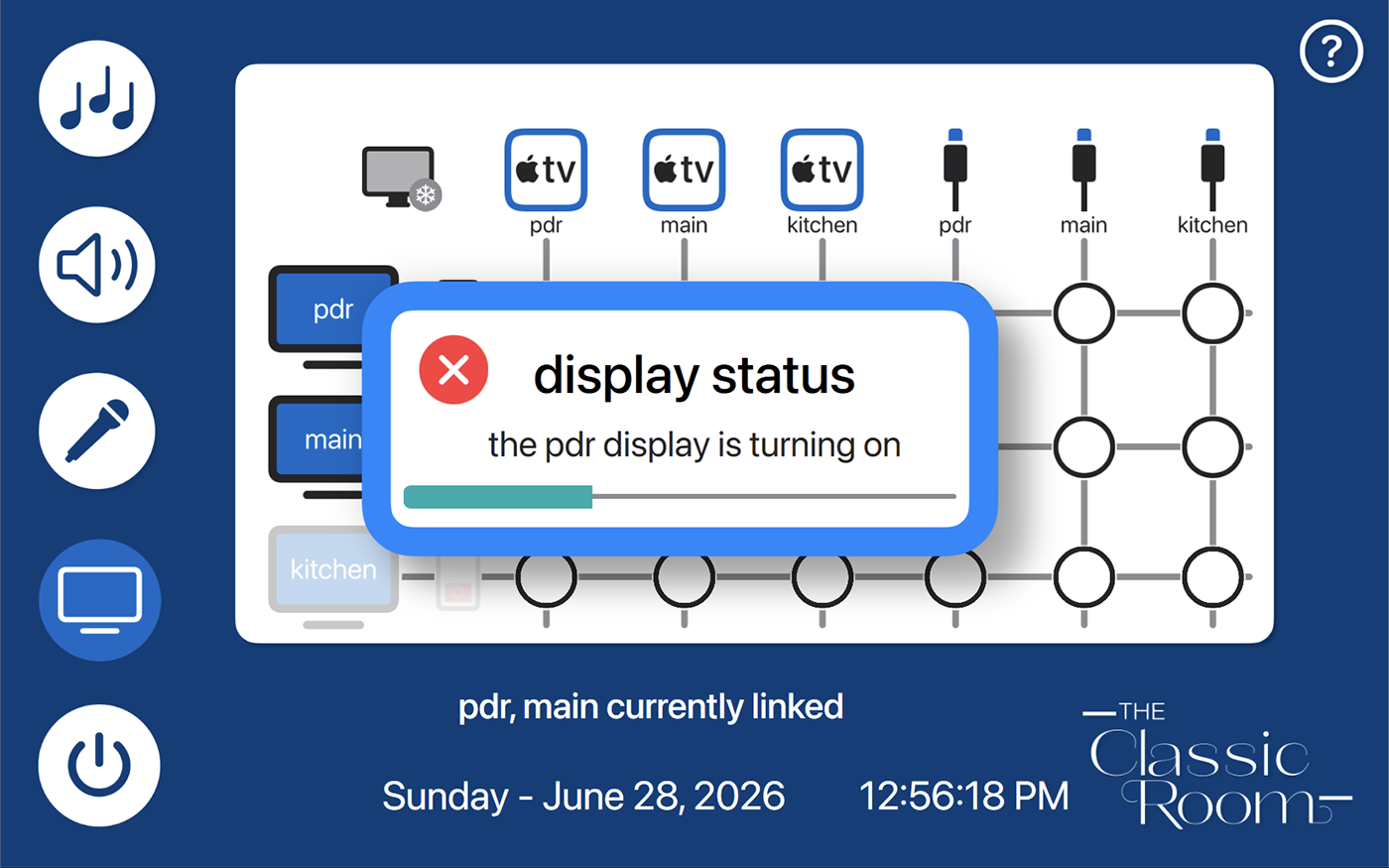
Alerts are designed to identify the exact device or condition and give the shortest useful next step.
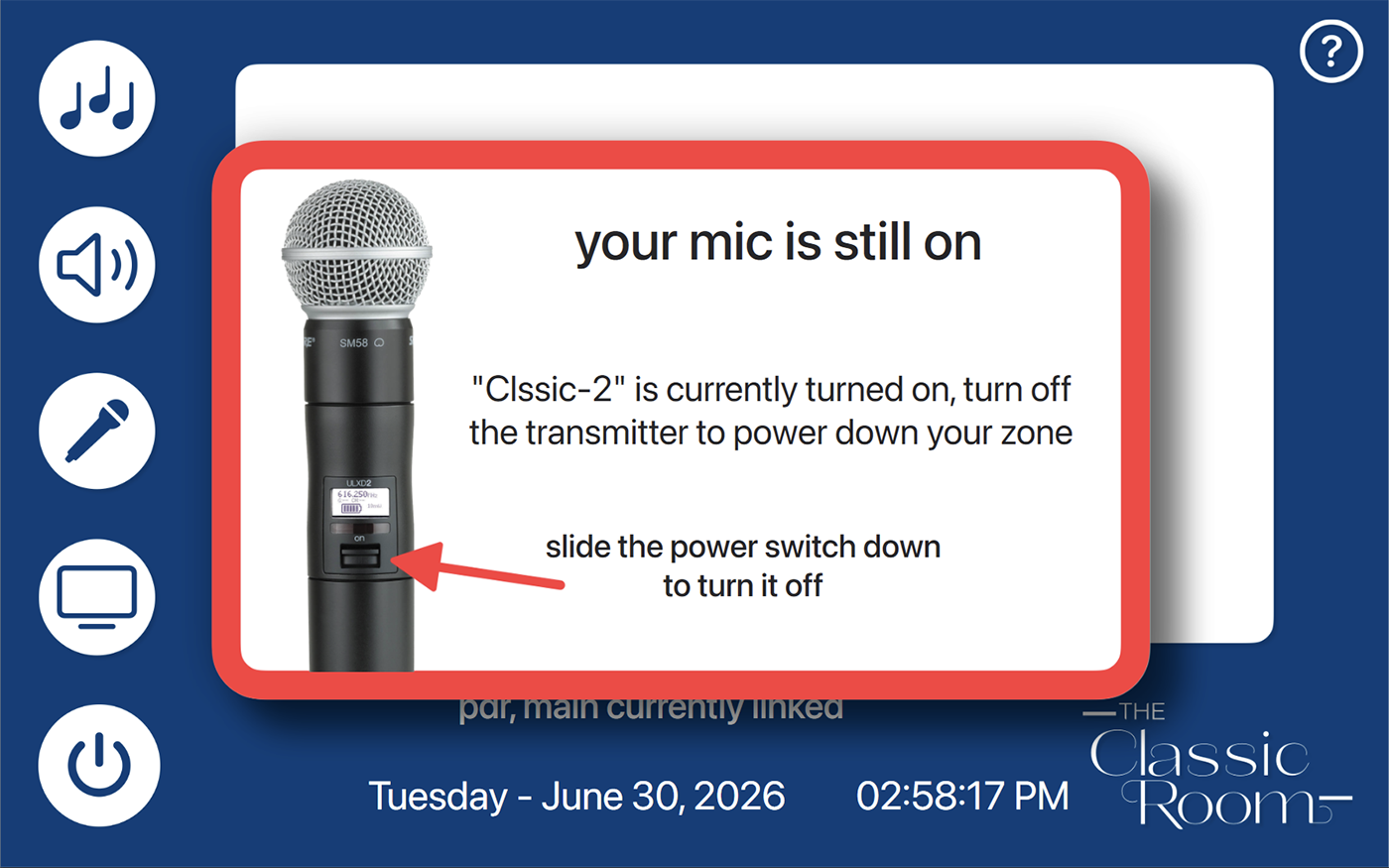
Alerts and troubleshooting
Check Volume Levels. Make sure both the speaker row and the active source row are not muted.
Connect the cable to the indicated input and wake the source device so it sends video.
Turn on the physical transmitter. A low-battery alert means the listed microphone needs new Procell Intense AA batteries.
Turn off every transmitter named in the reminder. There is no bypass; shutdown continues automatically when they report off.
Portfolio note: this guide documents the designed user experience and is not an official support channel or live service-status source.